





Improving scanner accuracy
Contents
Not yet available to everyone – join the waitlist to get updates.
Replay Vision scanners are only as good as their configuration. The Quality tab on each scanner turns your team's judgment into a better configuration: rate the scanner's results, see accuracy trend across versions, and let PostHog AI recommend (and safely test) improvements to the prompt and every other behavior setting.
Open any scanner and select the Quality tab.
Rate results
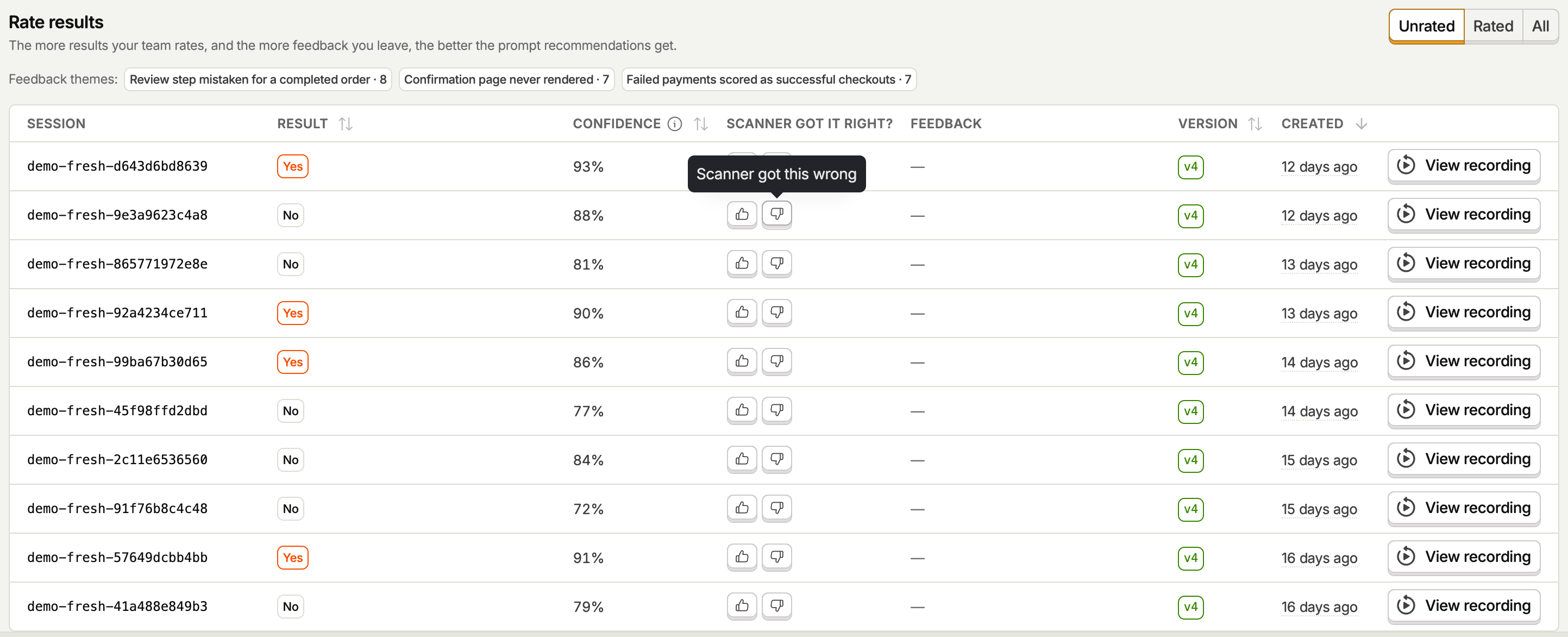
The Rate results table lists the scanner's successful observations. For each one, tell us whether the scanner got it right:
- Thumbs up if the result is correct.
- Thumbs down if it's wrong.
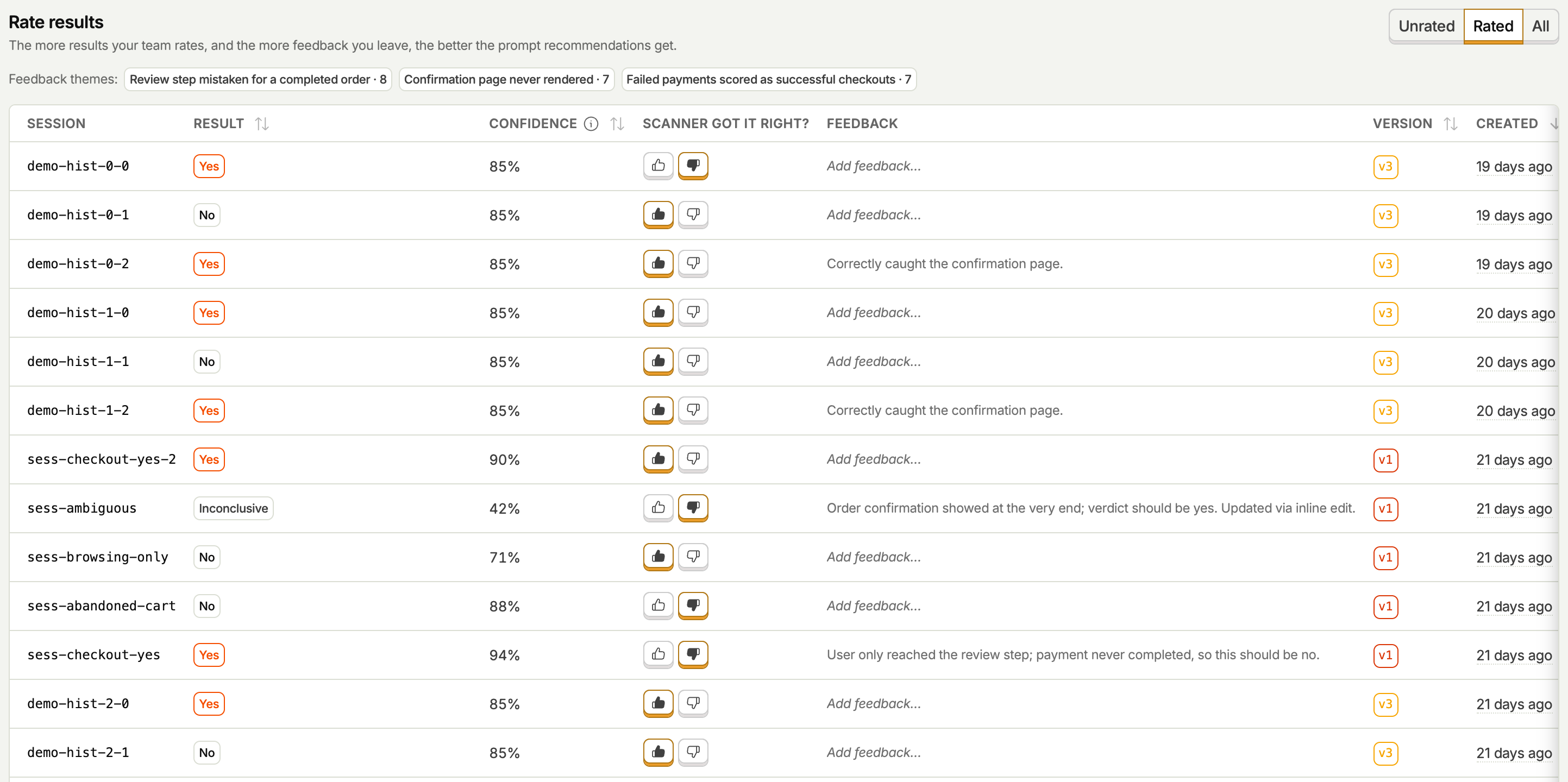
- Optionally, add written feedback explaining why. Feedback is the highest-signal input for configuration recommendations, so a short note like "user only reached the review step, payment never completed" goes a long way.
Click a session ID to open the full observation in a new tab, or use View recording to watch the recording itself before deciding.
A few things help you rate efficiently:
- The table defaults to Unrated results, so it works as a review queue. Switch to Rated or All at any time.
- The Confidence column shows how sure the scanner was of each result. Rating low-confidence sessions first teaches the scanner the most.
- The Version column shows which configuration version produced each result, so you can focus on results from the current version.
Rating requires edit access on the scanner.
Feedback themes
Once your team leaves written feedback, PostHog AI summarizes it into recurring failure modes, shown as Feedback themes chips above the table. They tell raters what to look out for, and they steer the configuration recommendation. Click a theme to filter the table to the sessions behind it.
Track quality over time
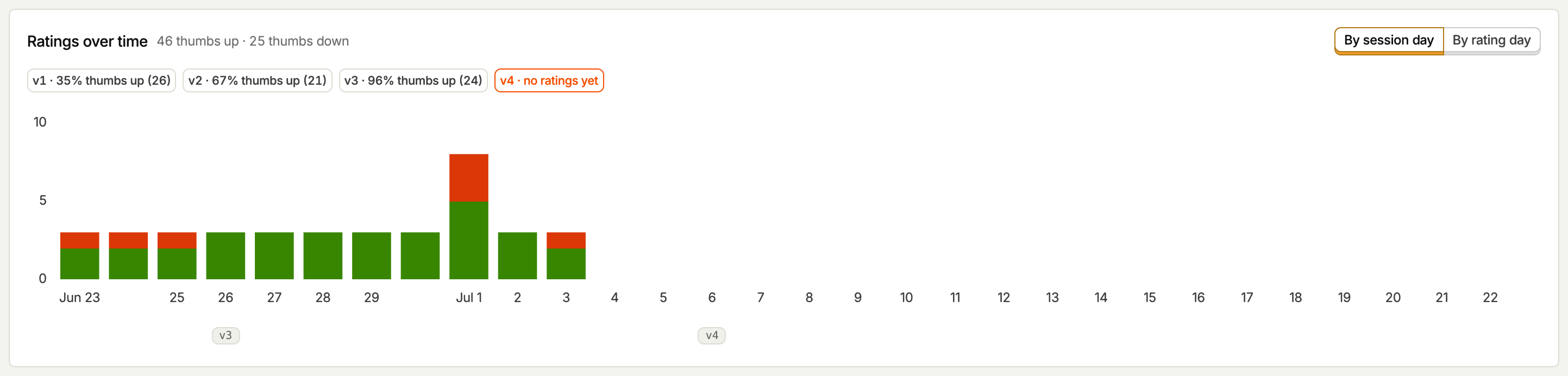
The Ratings over time chart shows thumbs up and thumbs down per day, with markers for when each configuration version went live. As the configuration improves, thumbs down should trend down.
Two views are available:
- By session day places ratings on the day the session was scanned. This shows how scanner quality trends over time and is the default.
- By rating day places ratings on the day they were given. This shows your team's rating activity.
Above the chart, each version gets a chip with its thumbs-up share among rated sessions, for example v3 · 96% thumbs up (24). This is the quickest way to confirm a new version actually improved accuracy. A version shows "no ratings yet" until someone rates results it produced.
Get a recommendation
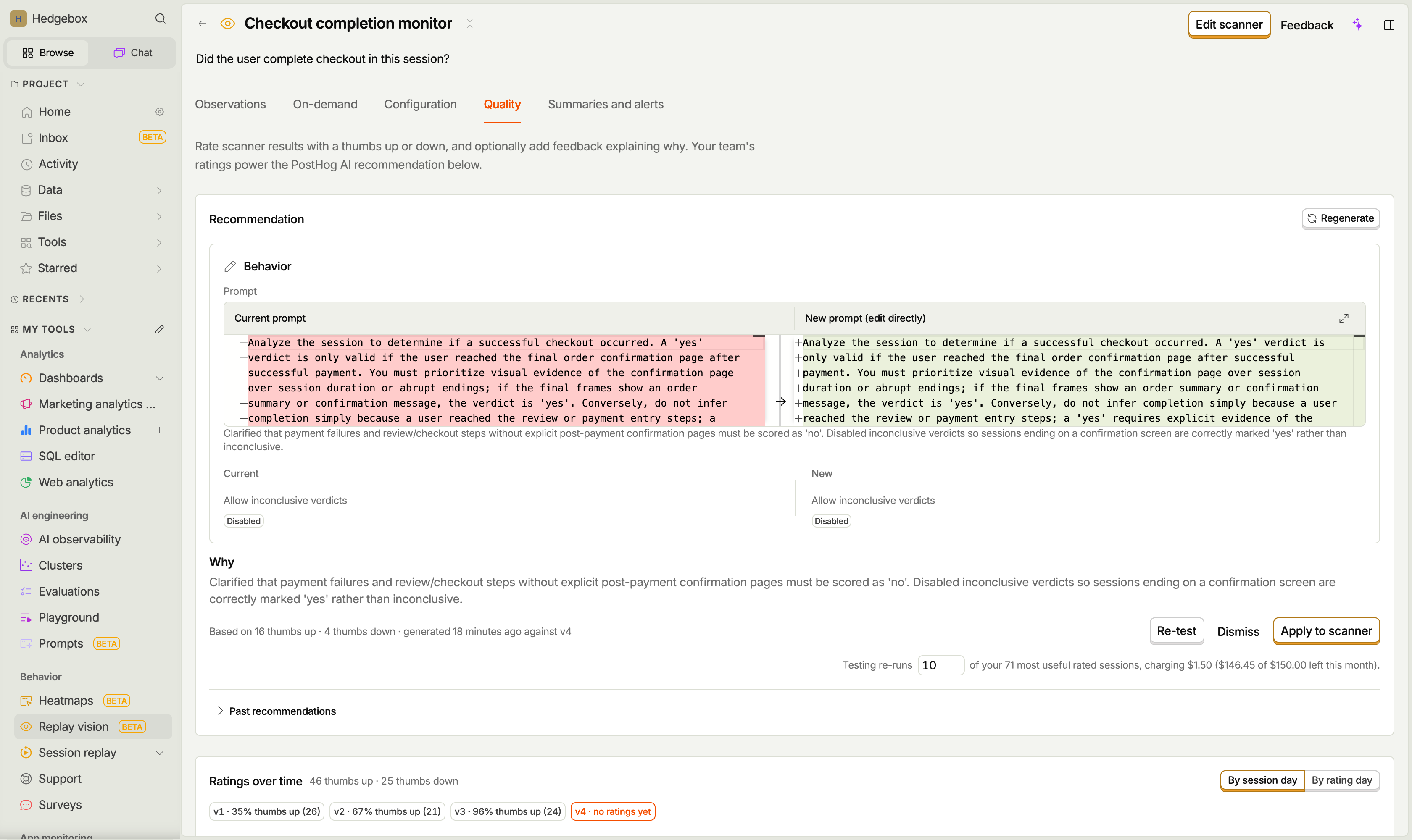
Your team's ratings and feedback power the Recommendation panel at the top of the tab. PostHog AI reviews the rated sessions, focusing on the ones marked wrong, and proposes changes to the scanner's behavior configuration. That covers every field that shapes results, depending on the scanner type:
- The prompt, for any scanner type.
- The tag vocabulary of a classifier, including adding, removing, or renaming tags, and the multiple tags per session and freeform tags settings.
- The scale of a scorer.
- The summary length of a summarizer.
- Whether a monitor allows inconclusive verdicts.
Each recommendation comes with:
- A side-by-side diff of the current and suggested value for every changed field. The suggested side is editable, so you can tweak it before testing or applying.
- A Why section explaining what failure modes the changes address.
- The ratings it was based on, when it was generated, and against which version.
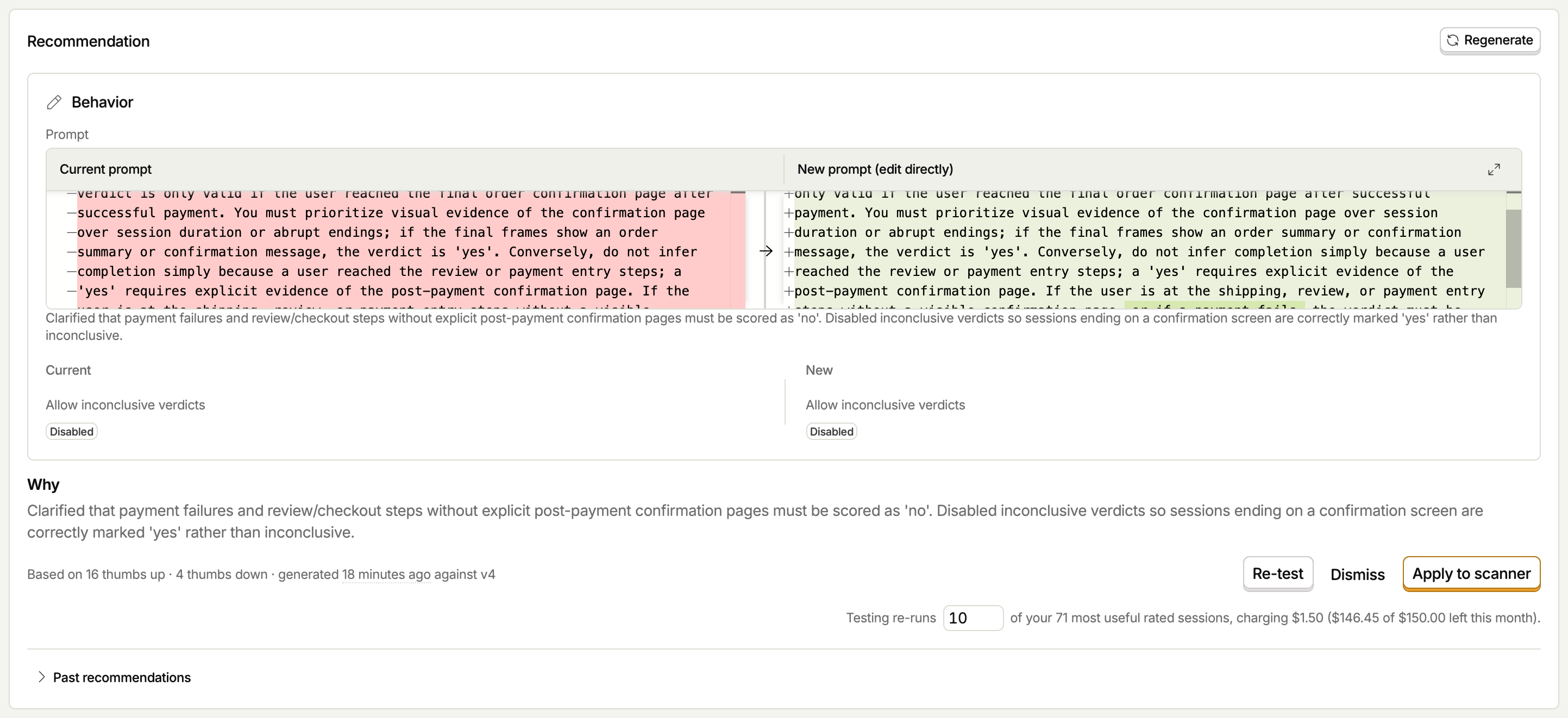
Recommendations refresh automatically about once a day while new ratings come in. A "New ratings since this was generated" tag appears when the recommendation is out of date, and you can Regenerate on demand. Sometimes the verdict is "Looks good": the current configuration already handles the rated sessions well and there is nothing to change.
Past recommendations, including dismissed and superseded ones, are kept under Past recommendations at the bottom of the panel.
Test before applying
For monitor and classifier scanners, Test against rated sessions re-runs the scanner with the suggested configuration (including your edits) against your most useful rated sessions, so you see what would change before committing:
- Fixed: a session rated wrong now gets a different result.
- Still wrong: a session rated wrong is unchanged.
- Kept: a session rated right is unchanged.
- Regressed: a session rated right now gets a different result.
Expand Per-session results to compare the current and suggested outcome for every tested session.
You pick how many sessions the test re-runs. Each tested session is charged like a normal observation of the scanner's model, and the panel shows the cost against your monthly Replay Vision budget before you run it.
Scorer and summarizer scanners have no discrete right or wrong outcome, so their test shows a raw before-and-after comparison per session instead of verdict tags.
Apply or dismiss
- Apply to scanner writes the suggested configuration (including any edits you made) to the scanner as a new version. The new version shows up as a marker in the ratings chart, so its accuracy is comparable against earlier versions as new ratings come in.
- Dismiss rejects the recommendation without changing the scanner. It stays visible under past recommendations.
Applying never rewrites history: every observation keeps a snapshot of the scanner configuration that produced it, and version accuracy chips always attribute ratings to the version that was live at the time.
The improvement loop
Putting it together, the quality tab supports a simple loop your team can run continuously:
- Rate new results as they come in, leaving feedback on the wrong ones.
- Watch the feedback themes to see which failure modes recur.
- Generate or wait for a configuration recommendation.
- Test it against your rated sessions.
- Apply it, then keep rating to confirm the new version's accuracy improved.